
Script:
Packages/com.molca.core/Editor/Sequence/SequenceVisualizerWindow.cs
Editor-only tooling for SequenceController and Step hierarchies. It does not ship in player builds.
Open the window
- In the Unity menu bar, choose Molca → Utilities → Sequence Visualizer.
- Assign a
SequenceControllerin the toolbar Controller object field, or select a step under a controller in the Hierarchy (the window can pick up the controller from selection).
Layout
Toggle the details icon in the toolbar to show or hide the right column.
Step tree
- Steps are shown in hierarchy order; expand/collapse nodes.
- Play mode: step names show runtime status (e.g. Active / Completed) and colors; Filters (Show Completed / Show Inactive) apply.
- Edit mode: hierarchy is rebuilt from transforms via
StepHierarchyBuilderwhen the scene changes. - Selection: syncs with the Unity Hierarchy. Ctrl/Cmd+click multi-select, Shift+click range select (anchor = last clicked).
- Shortcuts (see ? in toolbar): Delete removes selected steps (edit mode), F frames the primary step, Ctrl/Cmd+F focuses search.
Change step type
Available in the Step Details panel when:- Not in Play Mode, and
- Exactly one step is selected.
- New Type — popup listing all concrete types that inherit
Step(discovered across loaded assemblies viaFindAllStepTypes). - Apply Type Change — enabled only when the chosen type differs from the current component.
RefId) and Auxiliaries are kept. Other serialized fields on the old step type are lost when the component is swapped. Confirm in the dialog before applying.
Under the hood, the tool adds the new Step component, copies RefId and auxiliary list (via reflection), rebinds auxiliary internal references, then destroys the old step component — all Undo-able.
CSV Step Importer button
In Edit Mode, the left column includes a CSV Step Import section with: Open CSV Step Importer This callsCsvStepImporterWindow.ShowWindow(_selectedController), so the importer opens with the same SequenceController already targeted in the Visualizer (you can change it in the importer if needed).
The CSV section is hidden in Play Mode; use it while editing the scene.
The importer is also reachable directly: Molca → Utilities → CSV Step Importer (CsvStepImporterWindow.cs).
Related
- CSV Step Importer — columns, row range, import behavior, extensions
- SequenceController · Step · Core step types
Unity Editor
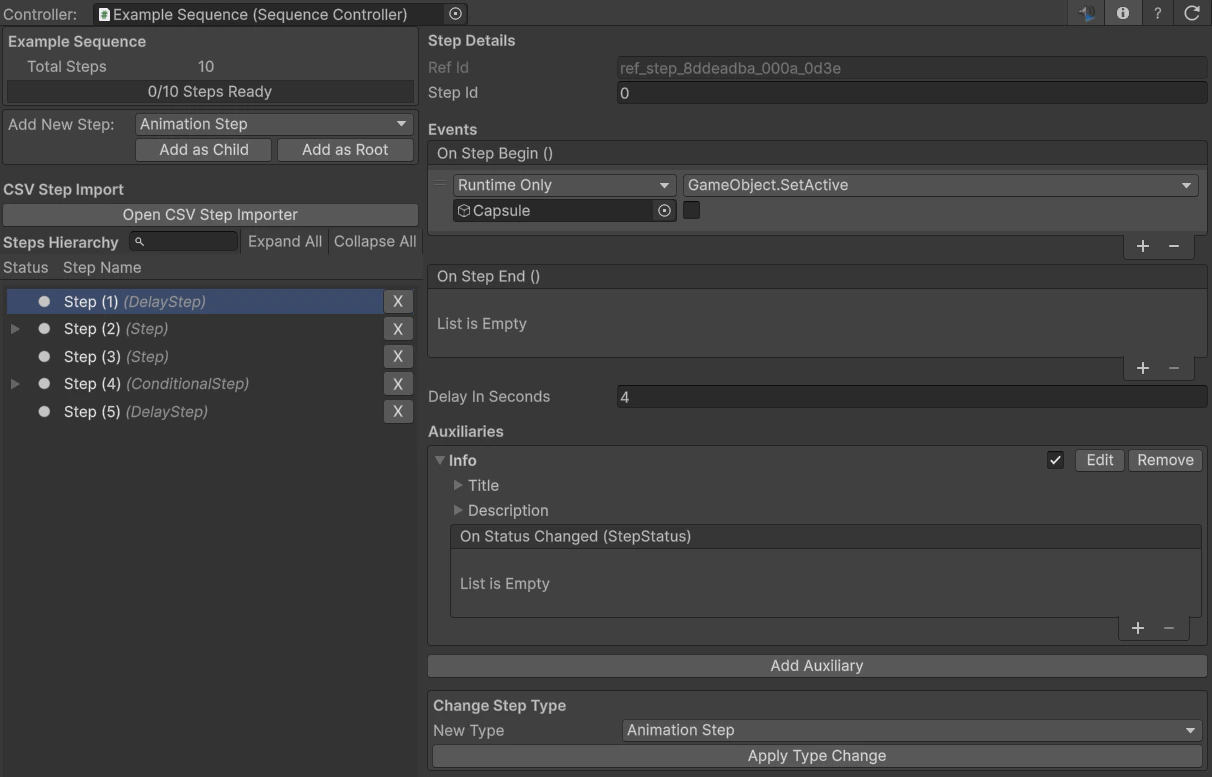
Sequence Visualizer — controller, tree, CSV button, and Change Step Type