
Assets/_MolcaSDK/_VR/Scripts/Scenario/Steps/LookAtStep.cs— Step that validates gaze dwell completionAssets/_MolcaSDK/_VR/Scripts/Scenario/Steps/ProgressFeedbackUI.cs— Radial progress feedback for gaze dwellAssets/_MolcaSDK/_VR/Scripts/Scenario/Listener/StepDirectionBeltController.cs— Optional direction belt for target guidance
When to use
Gaze Interaction — use this guide when implementing this interaction pattern in a VR training scenario.Role
This guide covers implementing gaze-based interactions (inspection, verification, examination) in VR training scenarios:- LookAtStep — Step that validates player gaze on target for required duration
- ProgressFeedbackUI — Radial + percentage feedback showing gaze progress
- Direction Belt — Optional animated guide pointing to gaze target
- Head Transform — Auto-uses Camera.main or assigned head reference
Setup Steps
1. Create Gaze Target Object
- Create or select the object to be inspected (e.g., dashboard indicator, component, meter)
- Add ReferenceableComponent to the target GameObject (auto-generates ID via
OnValidate) - Note the RefId — you’ll assign this to LookAtStep
Target GameObject with ReferenceableComponent visible in Inspector, showing auto-generated ID.
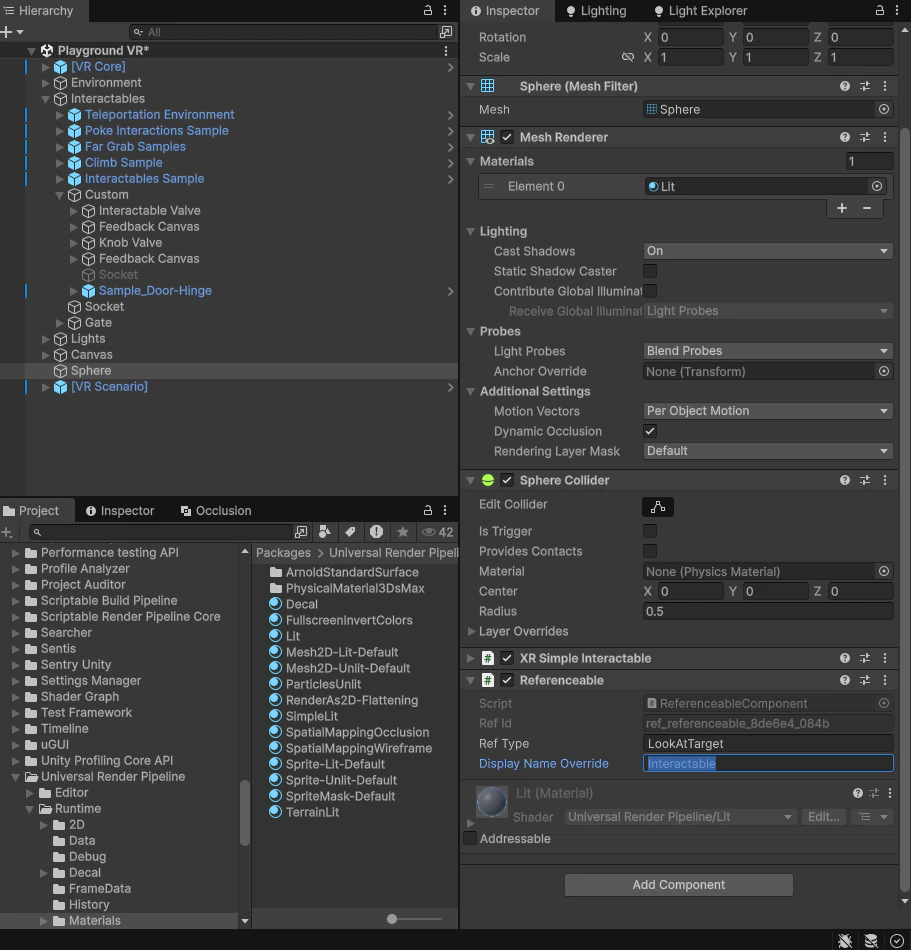
Gaze Target with ReferenceableComponent
2. Create LookAtStep for Gaze Validation
- Create or select a GameObject to hold the LookAtStep component (can be parent or separate manager)
- Add LookAtStep component
- Configure in Inspector:
- Look At Target Ref: Assign the target’s ReferenceableComponent
- Head Transform Ref: Assign head/camera transform (or leave empty to auto-use Camera.main)
- Required Look Time: Duration in seconds trainee must look (e.g., 2-3 seconds for inspection)
- Look Angle Threshold Degrees: Cone angle for “looking at” target (e.g., 15° for focused inspection)
- Reset Progress When Look Away: Enable to reset timer if trainee looks away
- Feedback UI Ref: Assign the ProgressFeedbackUI (next step)
LookAtStep Inspector showing target reference, look duration, and angle threshold configured.
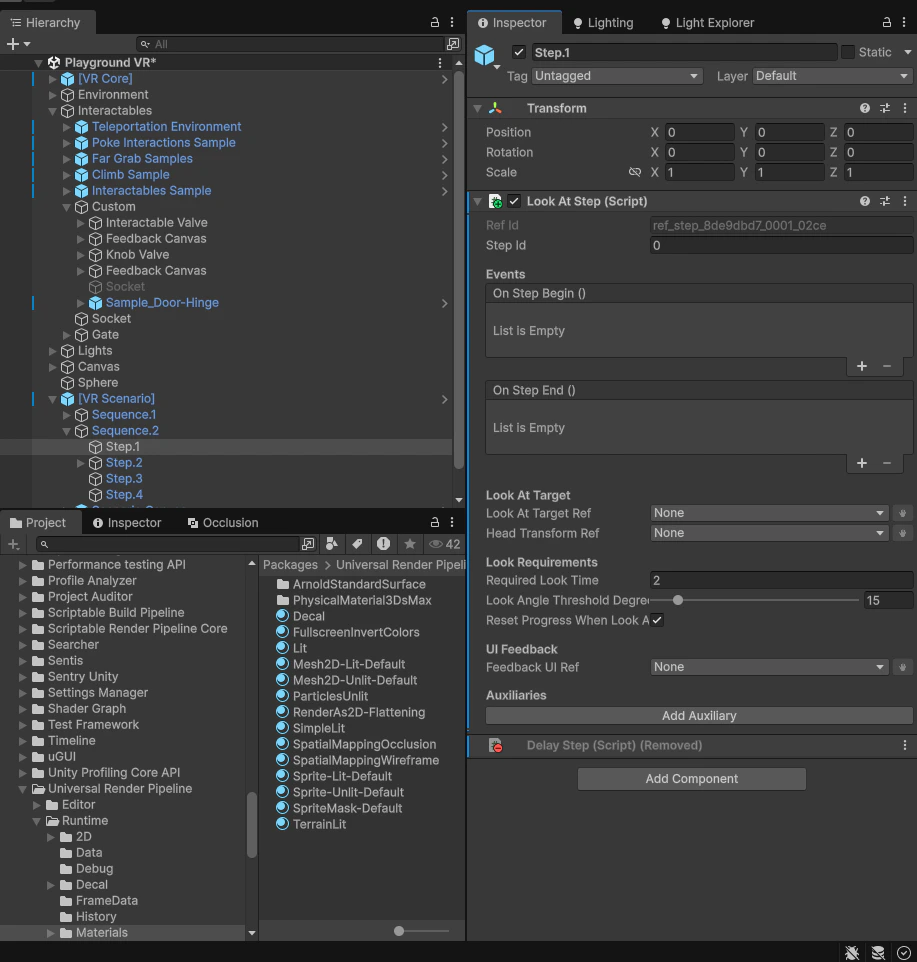
LookAtStep Configuration
3. Create ProgressFeedbackUI for Gaze Progress
- Create a Canvas (Screen Space or World Space) for progress feedback
- Add ProgressFeedbackUI component to the Canvas or container
- Configure in Inspector:
- UI Container: Drag the container/canvas GameObject (shown/hidden by step)
- Progress Image: Assign a radial Image component (Image Type: Filled, Fill Method: Radial)
- Progress Text: Assign a TextMeshProUGUI component for percentage display
- Progress Text Format: Format string (default:
{0:F0}%for whole percentage)
ProgressFeedbackUI Inspector showing radial Image and percentage Text assigned.
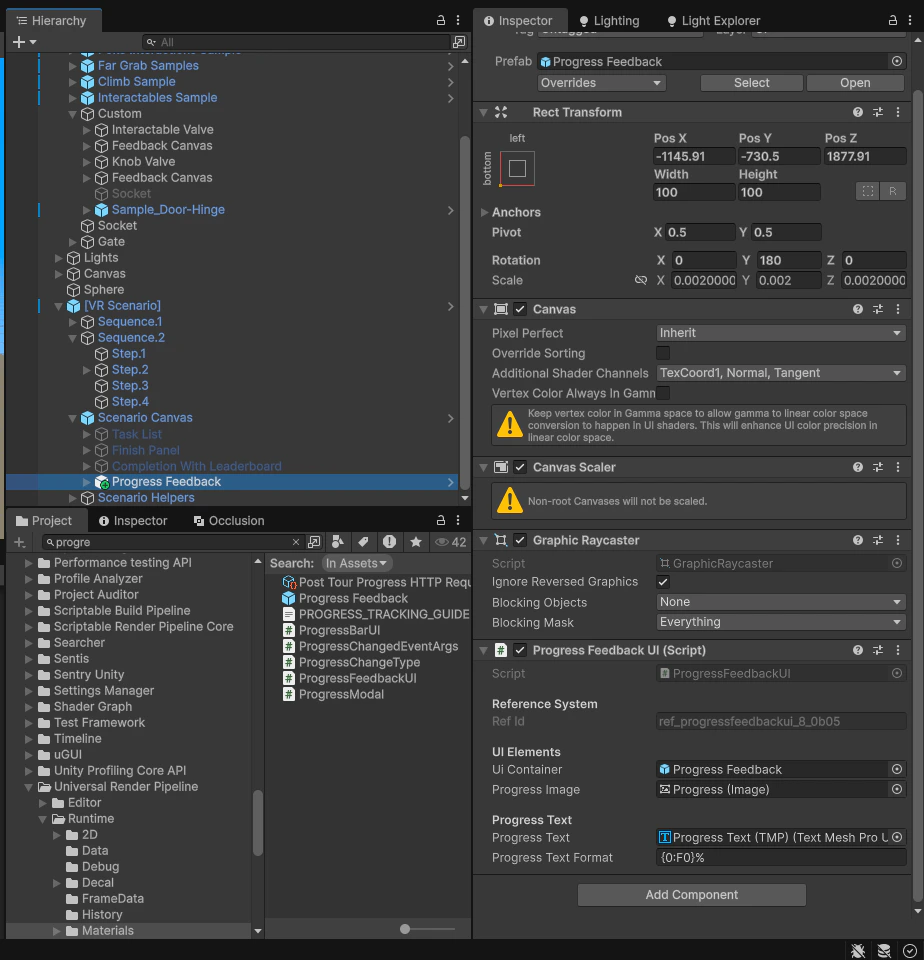
ProgressFeedbackUI Setup
4. Optional: Add Direction Belt for Target Guidance
- On the LookAtStep component, expand Auxiliaries section
- Click Add Auxiliary → VR/Scenario/Direction Belt Controller
- Configure StepDirectionBeltController:
- Direction Belt Ref: Assign DirectionBelt’s ReferenceableComponent
- Target Ref: Assign gaze target’s ReferenceableComponent (same as LookAtStep target)
- Clear On End: Check to clear belt when inspection completes
LookAtStep auxiliaries showing StepDirectionBeltController pointing to target.
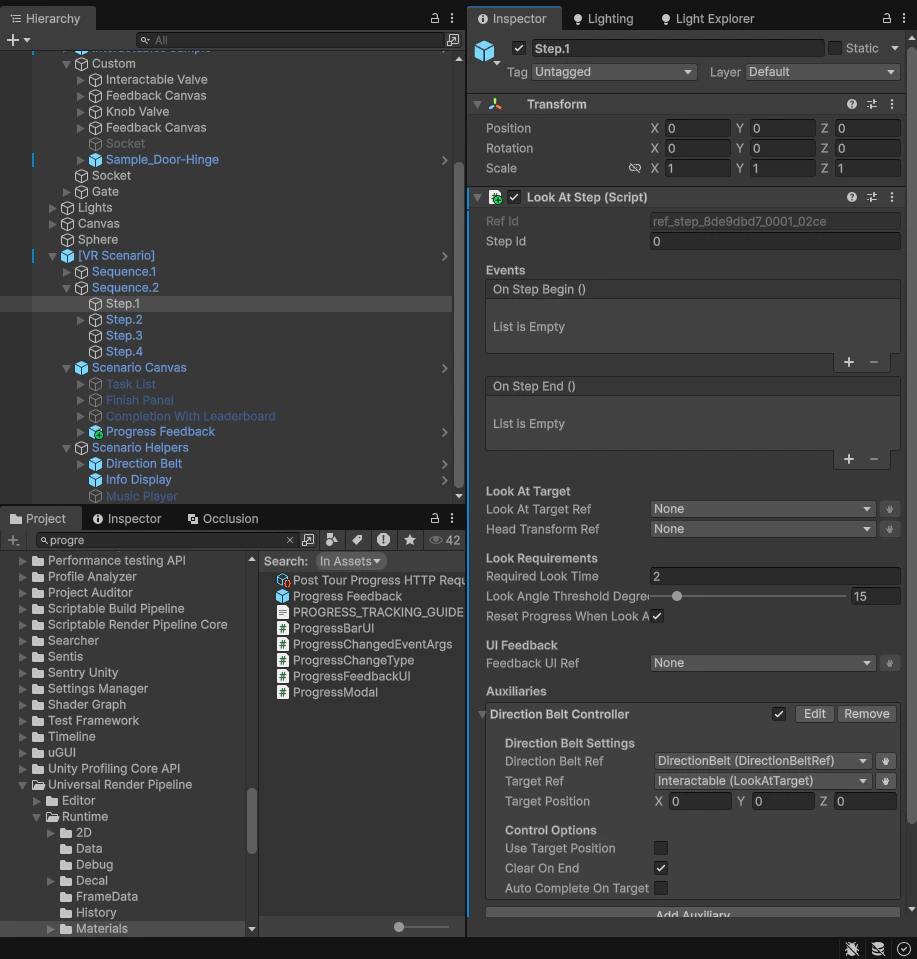
Optional Direction Belt for Target Guidance
How It Works
LookAtStep
File:Assets/_MolcaSDK/_VR/Scripts/Scenario/Steps/LookAtStep.cs
Monitors player gaze direction and accumulates dwell time:
- On step start (
OnStepActivated): Initializes gaze tracking- Resolves target and head transforms
- Shows ProgressFeedbackUI
- Sets dwell timer to zero
- Per frame (
Update): Checks if player is looking at target- Calculates angle between head forward and target direction
- If angle ≤ Look Angle Threshold: accumulates dwell time
- If looking away and Reset Progress When Look Away enabled: resets timer
- Progress check: When accumulated time ≥ Required Look Time, completes step
- On step end (
OnStepCompleted): Hides ProgressFeedbackUI
lookAtTargetRef— Target to gaze at (ReferenceableComponent)headTransformRef— Head/camera transform (auto-finds Camera.main if empty)requiredLookTime— Gaze duration in secondslookAngleThresholdDegrees— Cone angle (5–90°)resetProgressWhenLookAway— Reset timer on look-awayfeedbackUIRef— ProgressFeedbackUI reference
ProgressFeedbackUI
File:Assets/_MolcaSDK/_VR/Scripts/Scenario/Steps/ProgressFeedbackUI.cs
Displays radial fill + percentage text for gaze progress:
- Show/Hide: Canvas visibility controlled by LookAtStep
- SetProgress(0–1): Updates radial fill amount and text percentage
- IsVisible: Property tracking UI visibility state
uiContainer— Canvas/container to show/hideprogressImage— Radial Image (type: Filled, method: Radial)progressText— TextMeshProUGUI for percentageprogressTextFormat— Format string ({0:F0}%= “0%”, “50%”, “100%“)
Expected Results & Interaction Flow
Idle State
Step is not active. Target appears normal. ProgressFeedbackUI is hidden. No visual feedback.Step Activated (Inspection Begin)
When LookAtStep becomes active:- ProgressFeedbackUI appears (radial fill at 0%, text “0%”)
- Direction Belt becomes visible (optional, if configured)
- Visual feedback signals “look at target to inspect”
Approaching Target (Looking)
Trainee’s gaze enters the cone toward target:- Radial fill starts increasing (0% → 100%)
- Percentage text updates in real time (0% → 50% → 100%)
- Progress accumulates as long as gaze stays on target
Target Locked (Full Inspection)
Trainee maintains gaze on target for full duration:- Radial fill reaches 100%
- Text shows “100%”
- Step completes when dwell time ≥ Required Look Time
Look Away (Progress Reset)
If trainee looks away before completion:- If Reset Progress When Look Away enabled:
- Radial fill immediately resets to 0%
- Text resets to “0%”
- Dwell timer resets
- If disabled:
- Progress pauses but doesn’t reset
- Timer resumes when trainee looks back
Step Complete
Gaze dwell time satisfied:- ProgressFeedbackUI hides
- Direction Belt clears (if Clear On End enabled)
- Step fires
OnStepEndevent - Inspection complete
Implementation (Inspector Only)
For gaze inspection with progress feedback, no code required. Configure entirely in Inspector:- Target with ReferenceableComponent — What to inspect
- LookAtStep — Gaze validation and timer
- ProgressFeedbackUI — Radial progress display
- Optional: StepDirectionBeltController — Target guidance
Additional Auxiliaries
LookAtStep can use other auxiliaries for enhanced feedback:Troubleshooting
Related
- LookAtStep — Gaze dwell validation and timer control
- ProgressFeedbackUI — Radial progress display UI component
- StepDirectionBeltController — Optional target guidance via direction belt
- VR step auxiliaries — Overview of all StepAuxiliary types
- Step scoring auxiliary — Time-based scoring for inspection speed
- VR player manager — Disable locomotion during inspection
Visual Examples
Scene Setup
Scene view showing inspection target with head/camera, ProgressFeedbackUI canvas, and optional direction belt.
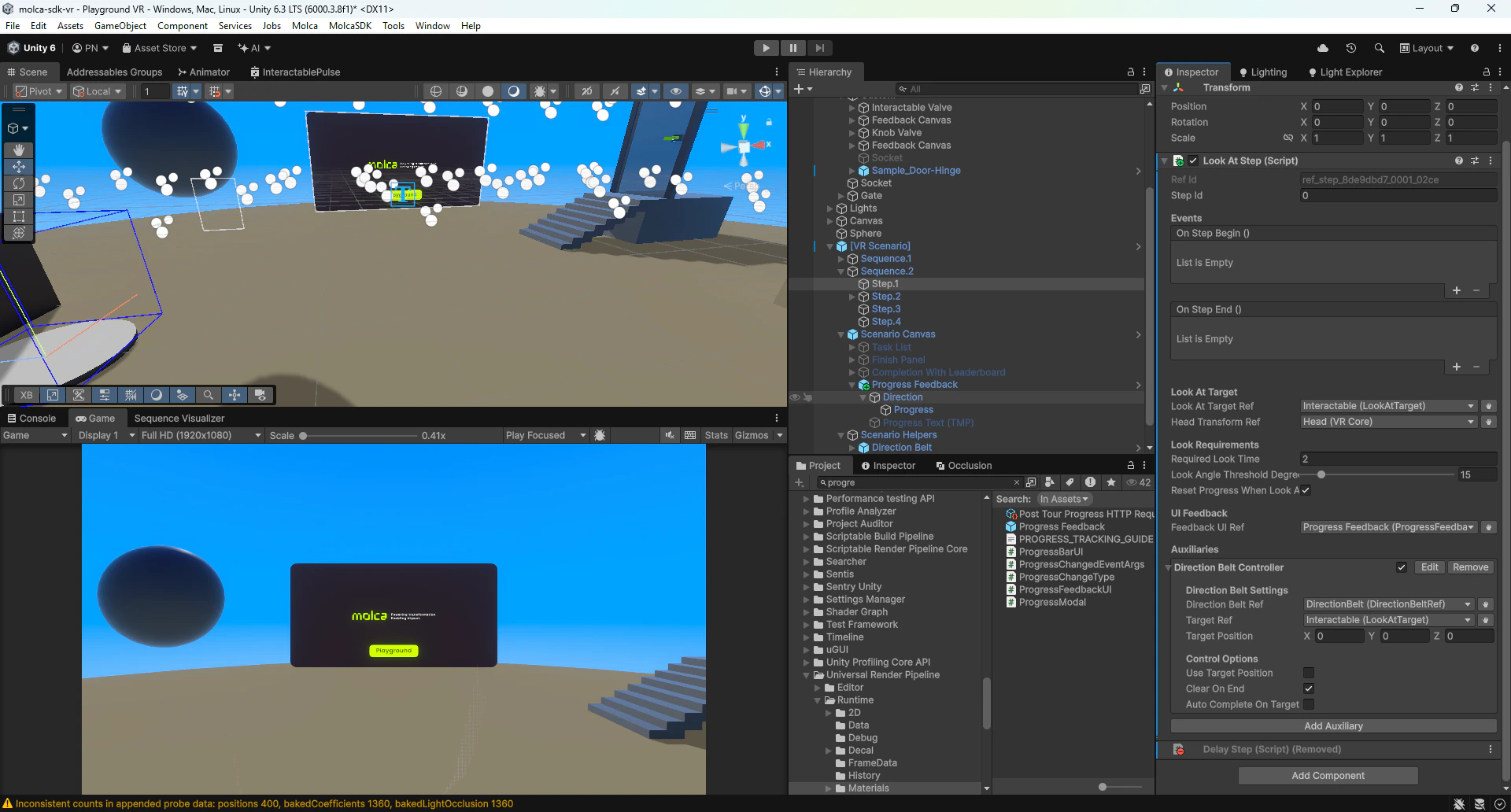
Complete Gaze Inspection Scene Setup
Interaction Flow Animation
Animated sequence showing trainee looking at target, progress bar filling (0→100%), gaze locked, and inspection complete.
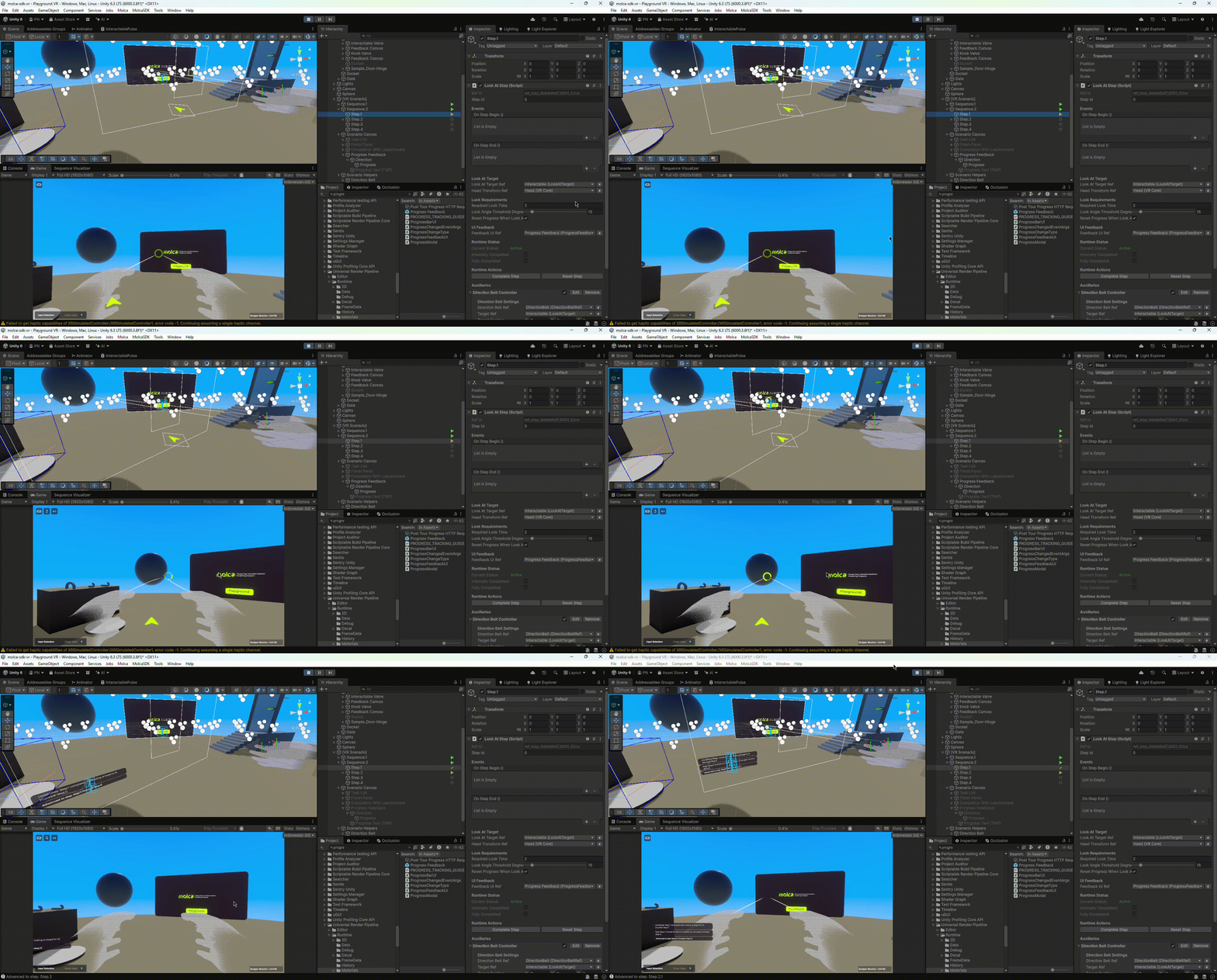
Gaze Inspection Sequence (Animation)