> ## Documentation Index
> Fetch the complete documentation index at: https://docs-unity.molca.id/llms.txt
> Use this file to discover all available pages before exploring further.
# Interactable Grab Object Implementation
> Complete guide to implementing grab interactions with visual feedback using XRGrabInteractable, StepObjectHighlightAuxiliary, and StepDirectionBeltController.
**Core Components:**
* `Assets/_MolcaSDK/_VR/Scripts/Scenario/Steps/GrabStep.cs` — Step that validates grab completion
* `Assets/_MolcaSDK/_VR/Scripts/Scenario/Steps/Auxiliary/StepObjectHighlightAuxiliary.cs` — Highlights objects while step is active
* `Assets/_MolcaSDK/_VR/Scripts/Scenario/Listener/StepDirectionBeltController.cs` — Controls direction belt visual guidance
## When to use
Interactable Object — use this guide when implementing this interaction pattern in a VR training scenario.
## Role
This guide covers implementing a **grabbable object** in VR training scenarios with complete visual feedback:
* **XRGrabInteractable** — Core grab mechanics from XR Interaction Toolkit
* **Object Highlight** — Visual feedback via `StepObjectHighlightAuxiliary` (material overlay)
* **Direction Belt** — Animated guide via `StepDirectionBeltController` (reference-based targeting)
* **GrabStep** — Step completion validation and grab rules
Combined, these create a guided grab experience with clear visual feedback at each interaction stage. The auxiliaries handle visual feedback automatically through the step system—no custom scripting required for basic implementation.
## Setup Steps
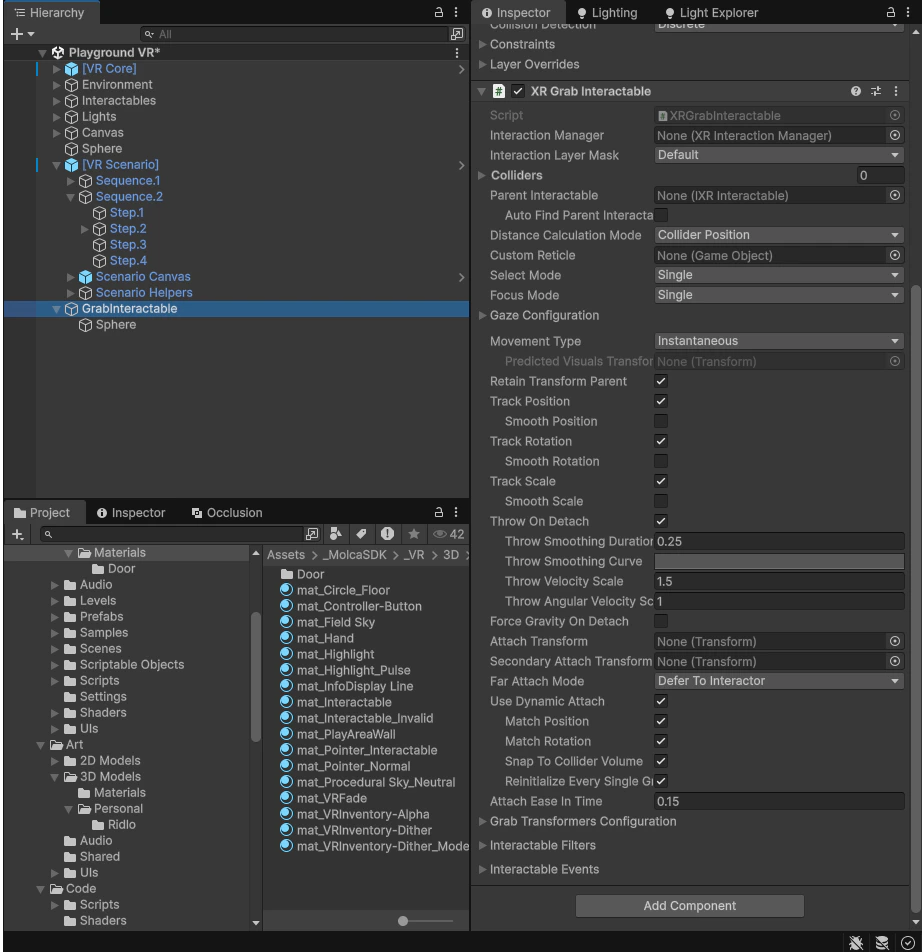
### 1. Create Grabbable Object with XRGrabInteractable
1. Create or select your grabbable object GameObject
2. Add **`XRGrabInteractable`** component (from XR Interaction Toolkit)
3. Configure in Inspector:
* **Select Mode**: `Single` for one-hand grab
* **Movement Type**: `Instantaneous`, `Kinematic`, or `VelocityTracking` (depending on physics)
* **Throw on Detach**: Enable if object should move after release
* **Smooth Position/Rotation**: Adjust for grabbing feel
 ### 2. Add GrabStep for Completion Validation
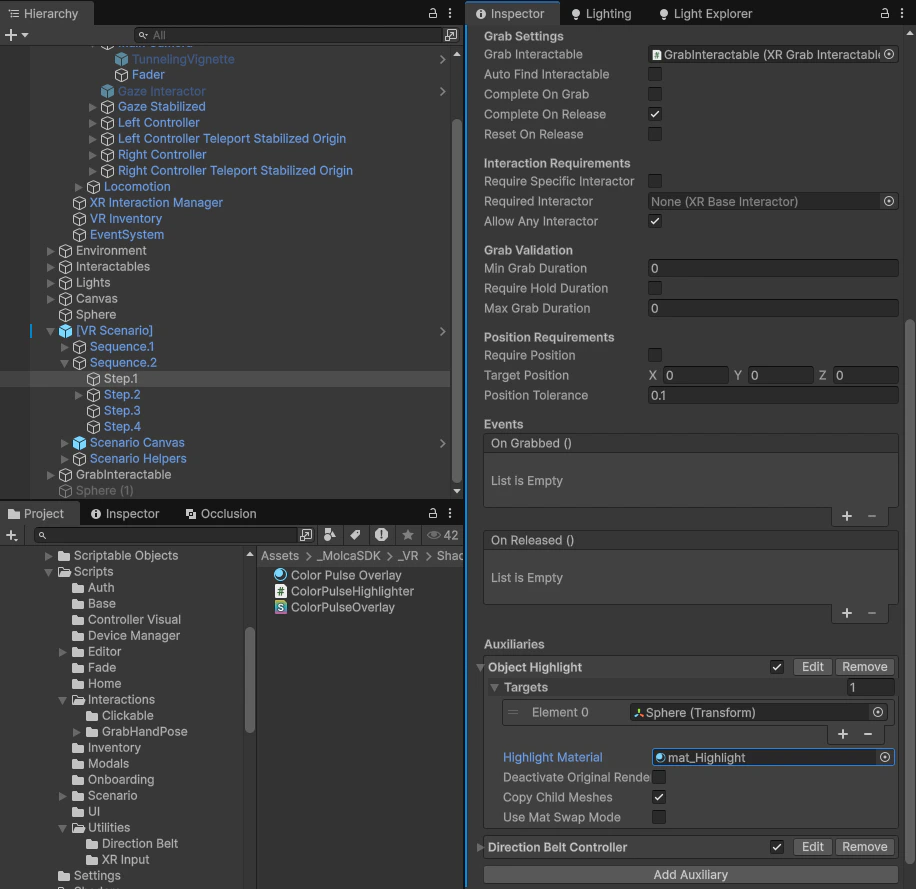
1. Add **`GrabStep`** component to the grabbable object (same GameObject as XRGrabInteractable)
2. Configure in Inspector:
* **Grab Interactable**: Auto-found or manually assign the `XRGrabInteractable`
* **Auto Find Interactable**: Check to auto-discover on same object
* **Complete On Grab**: Enable if step should complete immediately on grab
* **Require Hold Duration**: Enable with `minGrabDuration` (in seconds) for timed grabs
* **Allow Any Interactor**: Check to allow any hand, or assign **Required Interactor** (left/right)
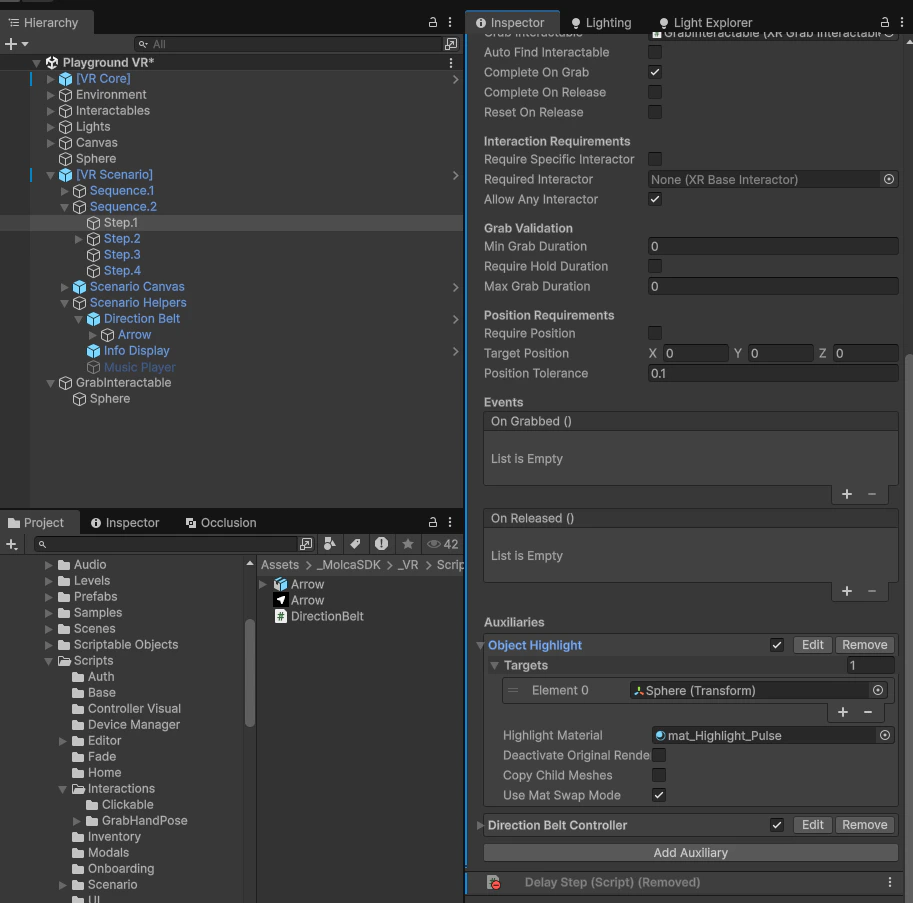
### 3. Add StepObjectHighlightAuxiliary for Visual Feedback
1. On the **GrabStep** component, expand **Auxiliaries** section
2. Click **Add Auxiliary** → **VR/Object Highlight**
3. Configure **StepObjectHighlightAuxiliary**:
* **Targets**: Drag the grabbable object (or objects) to highlight
* **Highlight Material**: Assign an emissive or outline material (acts as overlay or rim light)
* **Use Mat Swap Mode** *(new)*: Enable for material-swap-only approach (recommended for performance)
* **Deactivate Original Renderers**: Check to hide original while highlight shows (copy mode only)
* **Copy Child Meshes**: Check to include child objects in highlight (copy mode only)
#### Highlight Modes
**StepObjectHighlightAuxiliary** supports two distinct approaches:
| Mode | Approach | Performance | Use Case |
| ----------------------------------------------------- | -------------------------------------------------------------------------------------------------------- | ------------------------------------------------------- | ------------------------------------------------------- |
| **Copy Mode** (default, `useMatSwapMode = false`) | Creates visual duplicate of target with highlight material applied; original renderers optionally hidden | \~2x draw calls, memory overhead from duplication | Complex hierarchies, multi-object arrangements |
| **Material Swap Mode** (new, `useMatSwapMode = true`) | Swaps renderers directly to highlight material; restores on step end; uses pooled MaterialPropertyBlocks | Zero duplication, \~50% better performance, GC-friendly | Standard grabbable objects, performance-critical scenes |
**Recommendation**: Use **Material Swap Mode** (`useMatSwapMode = true`) for most grab interactions. Enable **Copy Mode** only if your highlight material requires the original geometry preserved (rare).
### 2. Add GrabStep for Completion Validation
1. Add **`GrabStep`** component to the grabbable object (same GameObject as XRGrabInteractable)
2. Configure in Inspector:
* **Grab Interactable**: Auto-found or manually assign the `XRGrabInteractable`
* **Auto Find Interactable**: Check to auto-discover on same object
* **Complete On Grab**: Enable if step should complete immediately on grab
* **Require Hold Duration**: Enable with `minGrabDuration` (in seconds) for timed grabs
* **Allow Any Interactor**: Check to allow any hand, or assign **Required Interactor** (left/right)
### 3. Add StepObjectHighlightAuxiliary for Visual Feedback
1. On the **GrabStep** component, expand **Auxiliaries** section
2. Click **Add Auxiliary** → **VR/Object Highlight**
3. Configure **StepObjectHighlightAuxiliary**:
* **Targets**: Drag the grabbable object (or objects) to highlight
* **Highlight Material**: Assign an emissive or outline material (acts as overlay or rim light)
* **Use Mat Swap Mode** *(new)*: Enable for material-swap-only approach (recommended for performance)
* **Deactivate Original Renderers**: Check to hide original while highlight shows (copy mode only)
* **Copy Child Meshes**: Check to include child objects in highlight (copy mode only)
#### Highlight Modes
**StepObjectHighlightAuxiliary** supports two distinct approaches:
| Mode | Approach | Performance | Use Case |
| ----------------------------------------------------- | -------------------------------------------------------------------------------------------------------- | ------------------------------------------------------- | ------------------------------------------------------- |
| **Copy Mode** (default, `useMatSwapMode = false`) | Creates visual duplicate of target with highlight material applied; original renderers optionally hidden | \~2x draw calls, memory overhead from duplication | Complex hierarchies, multi-object arrangements |
| **Material Swap Mode** (new, `useMatSwapMode = true`) | Swaps renderers directly to highlight material; restores on step end; uses pooled MaterialPropertyBlocks | Zero duplication, \~50% better performance, GC-friendly | Standard grabbable objects, performance-critical scenes |
**Recommendation**: Use **Material Swap Mode** (`useMatSwapMode = true`) for most grab interactions. Enable **Copy Mode** only if your highlight material requires the original geometry preserved (rare).
 **Highlight Material Requirements:**
* **Copy Mode**: Emissive shader with `_EmissionIntensity` or `_Color` control; outline shader (e.g., Quick Outline)
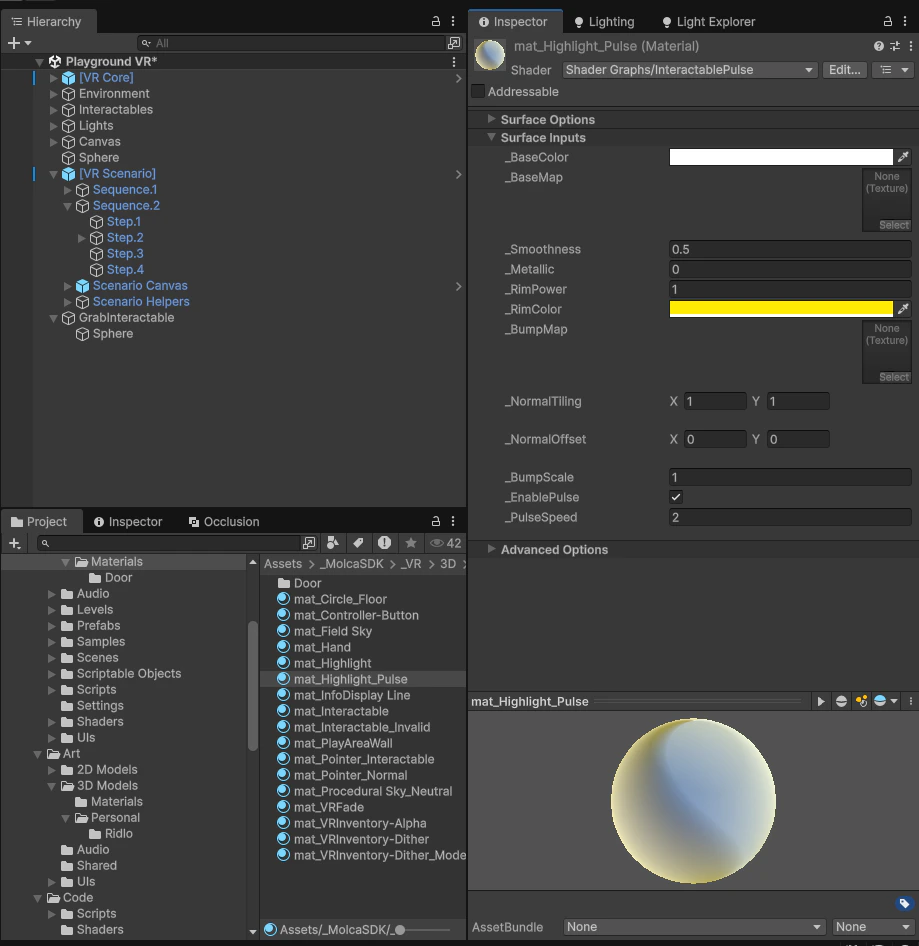
* **Material Swap Mode**: Rim light shader with pulse animation (e.g., `mat_Highlight_Pulse`); automatically copies texture properties from original (\_BaseMap, \_BumpMap, \_Metallic, etc.)
**Highlight Material Requirements:**
* **Copy Mode**: Emissive shader with `_EmissionIntensity` or `_Color` control; outline shader (e.g., Quick Outline)
* **Material Swap Mode**: Rim light shader with pulse animation (e.g., `mat_Highlight_Pulse`); automatically copies texture properties from original (\_BaseMap, \_BumpMap, \_Metallic, etc.)
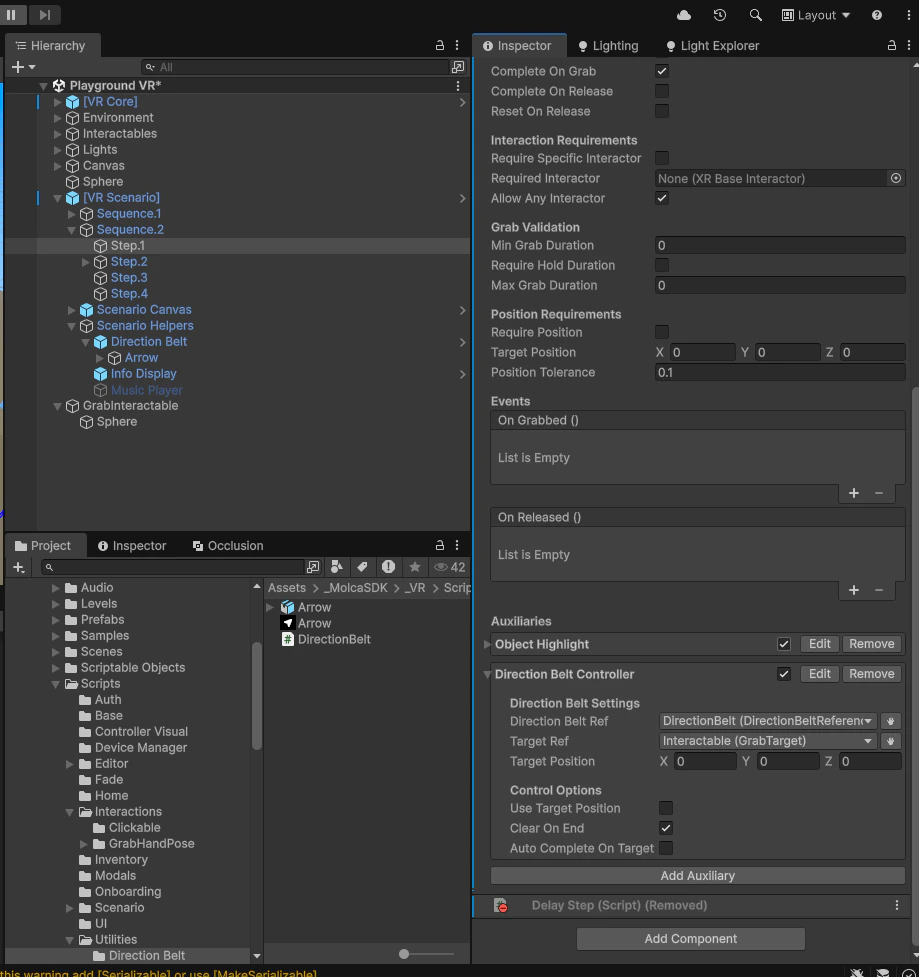
 ### 4. Add StepDirectionBeltController for Grab Guidance
1. On the **GrabStep** component, in **Auxiliaries** section
2. Click **Add Auxiliary** → **VR/Scenario/Direction Belt Controller**
3. Configure **StepDirectionBeltController**:
* **Direction Belt Ref**: Assign the DirectionBelt's **ReferenceableComponent** (scene must have one)
* **Target Ref**: Assign the target grab point's **ReferenceableComponent**
* **Use Target Position**: Check to use fixed position instead of transform
* **Target Position**: Set X/Y/Z coordinates if using position mode
* **Clear On End**: Check to clear belt when step completes
* **Auto Complete On Target Set**: Leave unchecked (GrabStep handles completion)
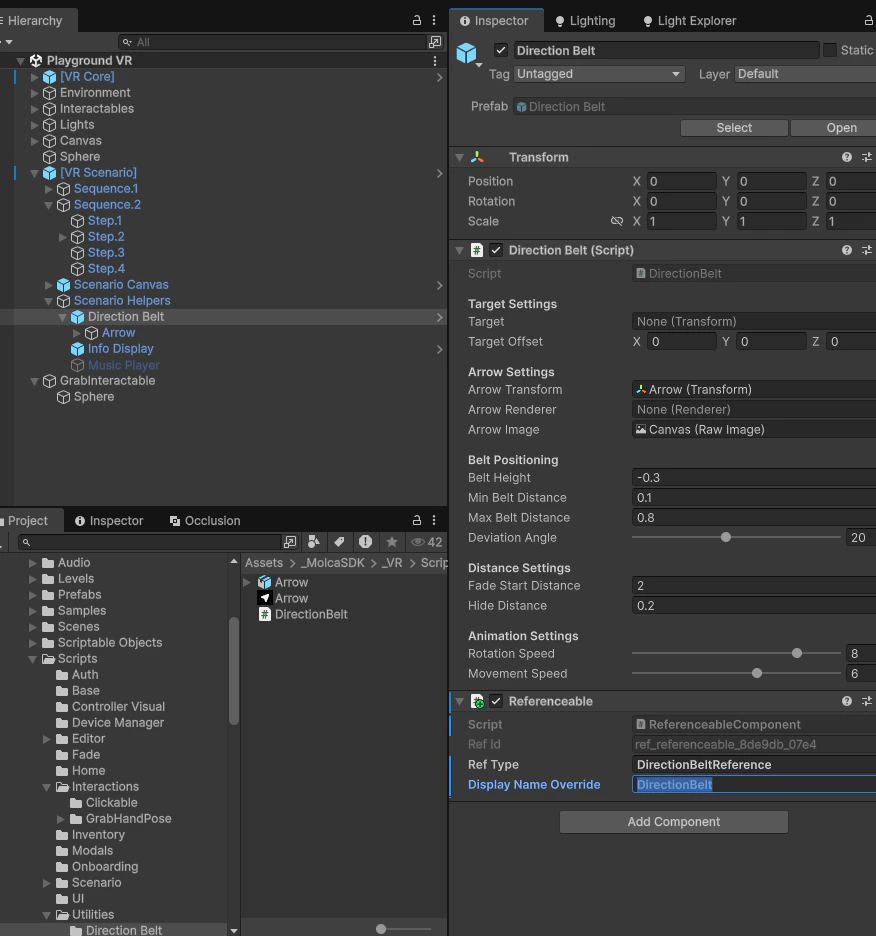
**Important:** Both `directionBeltRef` and `targetRef` require **ReferenceableComponent**:
* Add **ReferenceableComponent** to DirectionBelt GameObject (auto-generates stable ID via `OnValidate`)
* Add **ReferenceableComponent** to target grab point GameObject
* The reference system resolves these async on step start
### 4. Add StepDirectionBeltController for Grab Guidance
1. On the **GrabStep** component, in **Auxiliaries** section
2. Click **Add Auxiliary** → **VR/Scenario/Direction Belt Controller**
3. Configure **StepDirectionBeltController**:
* **Direction Belt Ref**: Assign the DirectionBelt's **ReferenceableComponent** (scene must have one)
* **Target Ref**: Assign the target grab point's **ReferenceableComponent**
* **Use Target Position**: Check to use fixed position instead of transform
* **Target Position**: Set X/Y/Z coordinates if using position mode
* **Clear On End**: Check to clear belt when step completes
* **Auto Complete On Target Set**: Leave unchecked (GrabStep handles completion)
**Important:** Both `directionBeltRef` and `targetRef` require **ReferenceableComponent**:
* Add **ReferenceableComponent** to DirectionBelt GameObject (auto-generates stable ID via `OnValidate`)
* Add **ReferenceableComponent** to target grab point GameObject
* The reference system resolves these async on step start
 ## How It Works
### StepObjectHighlightAuxiliary
**File:** `Assets/_MolcaSDK/_VR/Scripts/Scenario/Steps/Auxiliary/StepObjectHighlightAuxiliary.cs`
Highlights target objects using one of two performance-optimized approaches:
#### Copy Mode (Default)
1. **On step start** (`OnStepBegin`): Creates visual copy of target objects
2. **Material application**: Copies all renderers to highlight duplicates with highlight material applied
3. **Original renderers**: Optionally deactivates originals (if **Deactivate Original Renderers** enabled)
4. **On step end**: Destroys highlight copies and restores originals
5. **Cleanup**: `VisualCopyUtility.RestoreRenderers()` re-enables deactivated renderers
**Key fields (Copy Mode):**
* `targets[]` — Objects to highlight (can be multiple)
* `highlightMaterial` — Material overlay (emissive/outline shader)
* `deactivateOriginalRenderers` — Hide originals during highlight
* `copyChildMeshes` — Include child meshes in the visual copy
#### Material Swap Mode (Recommended) ⭐
1. **On step start** (`OnStepBegin`): Swaps renderers directly to highlight material
2. **Property copying**: Automatically copies texture & material properties from original to highlight via `MaterialPropertyBlock`:
* **Textures**: `_BaseMap`, `_BumpMap`, `_MetallicGlossMap`, `_OcclusionMap`, `_DetailAlbedoMap`, `_DetailNormalMap`, `_EmissionMap`
* **UV Scale/Offset**: `_BaseMap_ST`, `_BumpMap_ST`, `_MetallicGlossMap_ST`
* **Colors**: `_BaseColor`, `_Color`, `_EmissionColor`
* **Floats**: `_Metallic`, `_Smoothness`, `_OcclusionStrength`, `_BumpScale`
3. **PropertyBlock pooling**: Uses `MaterialPropertyBlockPool` to reuse blocks (zero GC allocation after warmup)
4. **On step end**: Restores original materials and returns pooled blocks
**Key fields (Material Swap Mode):**
* `targets[]` — Objects to highlight (can be multiple)
* `highlightMaterial` — Rim light material with pulse animation (e.g., `mat_Highlight_Pulse`)
* `useMatSwapMode` — Enable this toggle to activate material swap mode
**Performance Characteristics:**
| Metric | Copy Mode | Material Swap Mode |
| ---------------------- | ----------------------------------- | ----------------------------------- |
| GameObject Duplication | Yes (1 copy per target) | No |
| Memory Overhead | High (duplicate meshes + materials) | Zero |
| Draw Calls | \~2x per highlighted object | \~1x (same as base) |
| GC Allocation | Per-highlight allocation | Zero after pool warmup |
| Property Copying | N/A | Automatic via MaterialPropertyBlock |
### StepDirectionBeltController
**File:** `Assets/_MolcaSDK/_VR/Scripts/Scenario/Listener/StepDirectionBeltController.cs`
Controls a **DirectionBelt** component to guide grab approach:
1. **On step start** (`OnStepBegin`): Resolves DirectionBelt and target references
2. **Sets target**: Via `DirectionBelt.SetTarget(transform)` or `SetTargetPosition(vector3)`
3. **Belt animation**: DirectionBelt handles visual animation (arrows, rotation, etc.)
4. **On step end**: Clears target if **Clear On End** enabled
**Key fields:**
* `directionBeltRef` — Reference to DirectionBelt ReferenceableComponent
* `targetRef` — Reference to grab point ReferenceableComponent
* `useTargetPosition` — Use fixed position instead of transform
* `targetPosition` — X/Y/Z position (if using position mode)
* `clearOnEnd` — Clear belt when step completes
* `autoCompleteOnTargetSet` — Auto-complete step (usually disabled)
**DirectionBelt Requirements:**
* Must have **ReferenceableComponent** for reference system
* Handles its own animations and visuals
* Scene must have DirectionBelt active (or fallback auto-find applies)
### MaterialPropertyBlockPool (Material Swap Mode Support)
**File:** `Packages/com.molca.core/Runtime/Utilities/MaterialPropertyBlockPool.cs`
When **Material Swap Mode** is enabled, `StepObjectHighlightAuxiliary` uses a lightweight object pool to reuse `MaterialPropertyBlock` instances across highlight operations. This eliminates GC allocation overhead during frequent highlighting.
**Pool Behavior:**
* **Get()** — Returns cached block or creates new (up to 100 max)
* **Return()** — Puts block back in pool for reuse
* **Warmup()** — Pre-allocates 10 blocks during initialization
* **GetStats()** — Returns pool diagnostics (active, pooled, total)
* **Clear()** — Empties pool on shutdown
**Expected Performance Improvement:**
* **Initial (no warmup)**: \~100 bytes allocation per highlight
* **After warmup**: \~0 bytes allocation (blocks reused)
* **Net improvement**: \~90% GC reduction in highlight-heavy scenes
**Initialization** (Optional, recommended):
The pool automatically warms up via `MaterialPoolInitializer` subsystem during app bootstrap. No additional configuration needed.
***
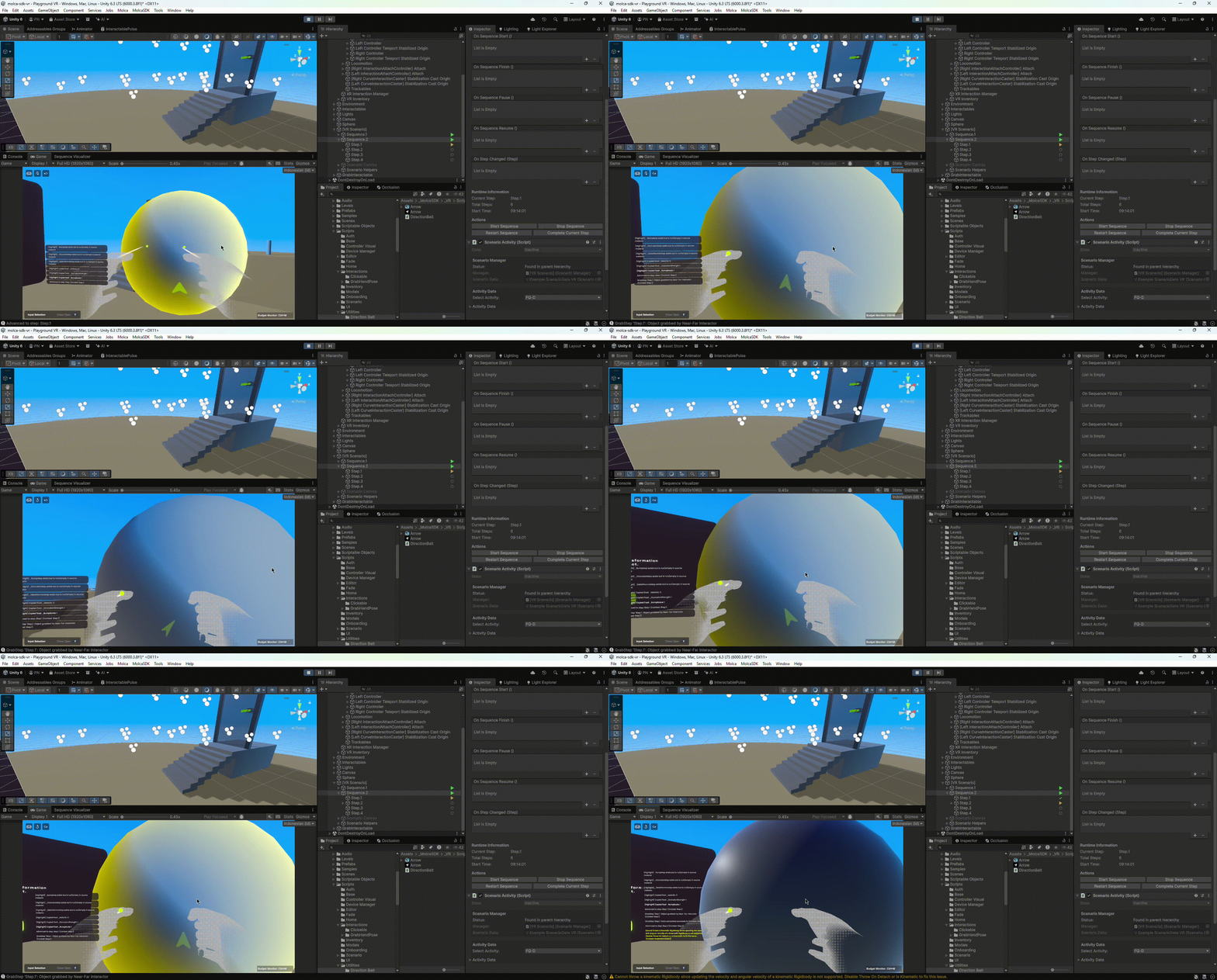
## Expected Results & Interaction Flow
### Idle State
Step is not active. Object appears in its base state (no highlight, no direction belt). The trainee sees a normal scene object with no visual cues.
### Step Activated (Initial)
When **GrabStep** becomes active (e.g., sequence step begins):
* **Object Highlight** overlay appears immediately on target object (bright or glowing based on highlight material)
* **Direction Belt** becomes visible, showing animated guidance toward grab point
* Visual feedback signals "this object is interactive"
### Approaching (Hand Near)
As trainee hand approaches within grab range:
* **Direction Belt** continues guiding toward target (arrows, rings, or belt rotation)
* **Object Highlight** remains visible and locked (confirming grab point)
* Visual feedback is consistent and strong
### Grabbable (In Range & Ready)
Hand is within grab range and all GrabStep conditions are met:
* Both **Object Highlight** and **Direction Belt** remain active
* Highlight material shows full intensity
* Visual feedback indicates "you can grab now"
### Grabbing (Grip Active)
Trainee presses grip trigger/button:
* **Object Highlight** remains locked in active state
* **Direction Belt** may pulse or animate (design-dependent)
* Grab is active; if hold duration required, feedback stays until timer done
### Step Complete
Grab completion conditions met (grab + hold time satisfied):
* **Object Highlight** fades out (if original renderers deactivated, they restore)
* **Direction Belt** clears (if **Clear On End** enabled)
* Step fires `OnStepEnd` event
* Visual feedback returns to idle
## Implementation (Inspector Only)
For basic grab with visual feedback, **no code required**. Configure entirely in Inspector:
1. **XRGrabInteractable** — Grab mechanics
2. **GrabStep** — Completion validation
3. **StepObjectHighlightAuxiliary** — Visual feedback (material overlay)
4. **StepDirectionBeltController** — Grab guidance (belt animation)
All auxiliaries are **StepAuxiliary** subclasses that fire automatically on step lifecycle events.
## Troubleshooting
| Issue | Solution |
| ---------------------------------------------- | -------------------------------------------------------------------------------------------------------------------------------------------------------------------------------------------------------------------------------------------- |
| **Highlight not visible** | Check **Highlight Material** assigned in StepObjectHighlightAuxiliary; use emissive or outline shader (copy mode) or rim light shader (swap mode); verify target object has Renderer component |
| **Highlight shows but original hidden** | **Copy Mode**: Check **Deactivate Original Renderers**; disable it or confirm original restoration works. **Swap Mode**: This should not occur; verify material was swapped back on step end |
| **Textures missing on highlight (Swap Mode)** | Ensure highlight material supports same texture properties as original (\_BaseMap, \_BumpMap, etc.); check Console for "\[Highlight] Copied texture" debug logs to verify copying; use `InteractablePulse.shadergraph` shader (URP Lit base) |
| **Pulse animation not visible (Swap Mode)** | Verify **\_EnablePulse** property is set to 1 on highlight material; check **\_PulseSpeed** > 0; confirm shader has pulse nodes enabled in Shader Graph |
| **Performance worse after enabling Swap Mode** | Ensure **Use Mat Swap Mode** toggle is actually enabled (not disabled); verify pooling is working via `MaterialPropertyBlockPool.GetStats()` debug logs |
| **Pool running out of blocks** | Default pool size is 100. If exceeded, graceful degradation creates uncached blocks. Monitor `GetStats().TotalCreated` to see if pool is undersized for your scene |
| **Direction Belt not showing** | Verify **Direction Belt Ref** assigned (must have ReferenceableComponent); check DirectionBelt GameObject is active in scene; ensure reference is resolved |
| **Direction Belt points wrong way** | Confirm **Target Ref** points to correct grab point; check if using **Use Target Position** correctly; verify ReferenceableComponent IDs are stable |
| **Step never completes** | Check **Complete On Grab** enabled in GrabStep; verify **Allow Any Interactor** or hand matches **Required Interactor**; if hold time required, check **minGrabDuration** is reasonable |
| **Grab not registering** | Verify XRGrabInteractable is on same/child GameObject; ensure XRI is active in XR Loader settings; test hand proximity in Play mode |
| **Multiple highlights stacked** | Check only one StepObjectHighlightAuxiliary per target; confirm auxiliary not running twice on same step; in swap mode, verify target object not shared between multiple StepObjectHighlightAuxiliary instances |
## Material Swap Mode Setup Guide
When using **Material Swap Mode** for optimal performance:
### Step 1: Create or Assign Highlight Material
Use a **rim light material with pulse animation**:
* **Recommended**: `Assets/_MolcaSDK/_VR/3D/Materials/mat_Highlight_Pulse.mat`
* **Shader**: `InteractablePulse.shadergraph` (URP Lit base with rim light + pulse nodes)
* **Properties**:
* `_EnablePulse` — Toggle pulse on/off
* `_PulseSpeed` — Breathing rate (default: 2.0)
* `_RimColor` — Glow color (default: cyan)
### Step 2: Configure StepObjectHighlightAuxiliary
1. Enable **Use Mat Swap Mode** toggle
2. Leave **Deactivate Original Renderers** unchecked (not needed for swap mode)
3. Leave **Copy Child Meshes** unchecked (swap mode handles all renderers automatically)
4. Assign your highlight material to **Highlight Material** field
### Step 3: Verify Texture Property Copying
Material Swap Mode automatically copies these from original to highlight:
* ✅ Base texture (\_BaseMap / \_MainTexture)
* ✅ Normal map (\_BumpMap / \_NormalMap)
* ✅ Metallic/Gloss map (\_MetallicGlossMap)
* ✅ UV scale/offset (\_BaseMap\_ST, etc.)
* ✅ Roughness, metallic, smoothness values
* ✅ Custom colors (\_BaseColor, \_EmissionColor)
No manual property assignment needed—highlighting preserves original material appearance.
## How It Works
### StepObjectHighlightAuxiliary
**File:** `Assets/_MolcaSDK/_VR/Scripts/Scenario/Steps/Auxiliary/StepObjectHighlightAuxiliary.cs`
Highlights target objects using one of two performance-optimized approaches:
#### Copy Mode (Default)
1. **On step start** (`OnStepBegin`): Creates visual copy of target objects
2. **Material application**: Copies all renderers to highlight duplicates with highlight material applied
3. **Original renderers**: Optionally deactivates originals (if **Deactivate Original Renderers** enabled)
4. **On step end**: Destroys highlight copies and restores originals
5. **Cleanup**: `VisualCopyUtility.RestoreRenderers()` re-enables deactivated renderers
**Key fields (Copy Mode):**
* `targets[]` — Objects to highlight (can be multiple)
* `highlightMaterial` — Material overlay (emissive/outline shader)
* `deactivateOriginalRenderers` — Hide originals during highlight
* `copyChildMeshes` — Include child meshes in the visual copy
#### Material Swap Mode (Recommended) ⭐
1. **On step start** (`OnStepBegin`): Swaps renderers directly to highlight material
2. **Property copying**: Automatically copies texture & material properties from original to highlight via `MaterialPropertyBlock`:
* **Textures**: `_BaseMap`, `_BumpMap`, `_MetallicGlossMap`, `_OcclusionMap`, `_DetailAlbedoMap`, `_DetailNormalMap`, `_EmissionMap`
* **UV Scale/Offset**: `_BaseMap_ST`, `_BumpMap_ST`, `_MetallicGlossMap_ST`
* **Colors**: `_BaseColor`, `_Color`, `_EmissionColor`
* **Floats**: `_Metallic`, `_Smoothness`, `_OcclusionStrength`, `_BumpScale`
3. **PropertyBlock pooling**: Uses `MaterialPropertyBlockPool` to reuse blocks (zero GC allocation after warmup)
4. **On step end**: Restores original materials and returns pooled blocks
**Key fields (Material Swap Mode):**
* `targets[]` — Objects to highlight (can be multiple)
* `highlightMaterial` — Rim light material with pulse animation (e.g., `mat_Highlight_Pulse`)
* `useMatSwapMode` — Enable this toggle to activate material swap mode
**Performance Characteristics:**
| Metric | Copy Mode | Material Swap Mode |
| ---------------------- | ----------------------------------- | ----------------------------------- |
| GameObject Duplication | Yes (1 copy per target) | No |
| Memory Overhead | High (duplicate meshes + materials) | Zero |
| Draw Calls | \~2x per highlighted object | \~1x (same as base) |
| GC Allocation | Per-highlight allocation | Zero after pool warmup |
| Property Copying | N/A | Automatic via MaterialPropertyBlock |
### StepDirectionBeltController
**File:** `Assets/_MolcaSDK/_VR/Scripts/Scenario/Listener/StepDirectionBeltController.cs`
Controls a **DirectionBelt** component to guide grab approach:
1. **On step start** (`OnStepBegin`): Resolves DirectionBelt and target references
2. **Sets target**: Via `DirectionBelt.SetTarget(transform)` or `SetTargetPosition(vector3)`
3. **Belt animation**: DirectionBelt handles visual animation (arrows, rotation, etc.)
4. **On step end**: Clears target if **Clear On End** enabled
**Key fields:**
* `directionBeltRef` — Reference to DirectionBelt ReferenceableComponent
* `targetRef` — Reference to grab point ReferenceableComponent
* `useTargetPosition` — Use fixed position instead of transform
* `targetPosition` — X/Y/Z position (if using position mode)
* `clearOnEnd` — Clear belt when step completes
* `autoCompleteOnTargetSet` — Auto-complete step (usually disabled)
**DirectionBelt Requirements:**
* Must have **ReferenceableComponent** for reference system
* Handles its own animations and visuals
* Scene must have DirectionBelt active (or fallback auto-find applies)
### MaterialPropertyBlockPool (Material Swap Mode Support)
**File:** `Packages/com.molca.core/Runtime/Utilities/MaterialPropertyBlockPool.cs`
When **Material Swap Mode** is enabled, `StepObjectHighlightAuxiliary` uses a lightweight object pool to reuse `MaterialPropertyBlock` instances across highlight operations. This eliminates GC allocation overhead during frequent highlighting.
**Pool Behavior:**
* **Get()** — Returns cached block or creates new (up to 100 max)
* **Return()** — Puts block back in pool for reuse
* **Warmup()** — Pre-allocates 10 blocks during initialization
* **GetStats()** — Returns pool diagnostics (active, pooled, total)
* **Clear()** — Empties pool on shutdown
**Expected Performance Improvement:**
* **Initial (no warmup)**: \~100 bytes allocation per highlight
* **After warmup**: \~0 bytes allocation (blocks reused)
* **Net improvement**: \~90% GC reduction in highlight-heavy scenes
**Initialization** (Optional, recommended):
The pool automatically warms up via `MaterialPoolInitializer` subsystem during app bootstrap. No additional configuration needed.
***
## Expected Results & Interaction Flow
### Idle State
Step is not active. Object appears in its base state (no highlight, no direction belt). The trainee sees a normal scene object with no visual cues.
### Step Activated (Initial)
When **GrabStep** becomes active (e.g., sequence step begins):
* **Object Highlight** overlay appears immediately on target object (bright or glowing based on highlight material)
* **Direction Belt** becomes visible, showing animated guidance toward grab point
* Visual feedback signals "this object is interactive"
### Approaching (Hand Near)
As trainee hand approaches within grab range:
* **Direction Belt** continues guiding toward target (arrows, rings, or belt rotation)
* **Object Highlight** remains visible and locked (confirming grab point)
* Visual feedback is consistent and strong
### Grabbable (In Range & Ready)
Hand is within grab range and all GrabStep conditions are met:
* Both **Object Highlight** and **Direction Belt** remain active
* Highlight material shows full intensity
* Visual feedback indicates "you can grab now"
### Grabbing (Grip Active)
Trainee presses grip trigger/button:
* **Object Highlight** remains locked in active state
* **Direction Belt** may pulse or animate (design-dependent)
* Grab is active; if hold duration required, feedback stays until timer done
### Step Complete
Grab completion conditions met (grab + hold time satisfied):
* **Object Highlight** fades out (if original renderers deactivated, they restore)
* **Direction Belt** clears (if **Clear On End** enabled)
* Step fires `OnStepEnd` event
* Visual feedback returns to idle
## Implementation (Inspector Only)
For basic grab with visual feedback, **no code required**. Configure entirely in Inspector:
1. **XRGrabInteractable** — Grab mechanics
2. **GrabStep** — Completion validation
3. **StepObjectHighlightAuxiliary** — Visual feedback (material overlay)
4. **StepDirectionBeltController** — Grab guidance (belt animation)
All auxiliaries are **StepAuxiliary** subclasses that fire automatically on step lifecycle events.
## Troubleshooting
| Issue | Solution |
| ---------------------------------------------- | -------------------------------------------------------------------------------------------------------------------------------------------------------------------------------------------------------------------------------------------- |
| **Highlight not visible** | Check **Highlight Material** assigned in StepObjectHighlightAuxiliary; use emissive or outline shader (copy mode) or rim light shader (swap mode); verify target object has Renderer component |
| **Highlight shows but original hidden** | **Copy Mode**: Check **Deactivate Original Renderers**; disable it or confirm original restoration works. **Swap Mode**: This should not occur; verify material was swapped back on step end |
| **Textures missing on highlight (Swap Mode)** | Ensure highlight material supports same texture properties as original (\_BaseMap, \_BumpMap, etc.); check Console for "\[Highlight] Copied texture" debug logs to verify copying; use `InteractablePulse.shadergraph` shader (URP Lit base) |
| **Pulse animation not visible (Swap Mode)** | Verify **\_EnablePulse** property is set to 1 on highlight material; check **\_PulseSpeed** > 0; confirm shader has pulse nodes enabled in Shader Graph |
| **Performance worse after enabling Swap Mode** | Ensure **Use Mat Swap Mode** toggle is actually enabled (not disabled); verify pooling is working via `MaterialPropertyBlockPool.GetStats()` debug logs |
| **Pool running out of blocks** | Default pool size is 100. If exceeded, graceful degradation creates uncached blocks. Monitor `GetStats().TotalCreated` to see if pool is undersized for your scene |
| **Direction Belt not showing** | Verify **Direction Belt Ref** assigned (must have ReferenceableComponent); check DirectionBelt GameObject is active in scene; ensure reference is resolved |
| **Direction Belt points wrong way** | Confirm **Target Ref** points to correct grab point; check if using **Use Target Position** correctly; verify ReferenceableComponent IDs are stable |
| **Step never completes** | Check **Complete On Grab** enabled in GrabStep; verify **Allow Any Interactor** or hand matches **Required Interactor**; if hold time required, check **minGrabDuration** is reasonable |
| **Grab not registering** | Verify XRGrabInteractable is on same/child GameObject; ensure XRI is active in XR Loader settings; test hand proximity in Play mode |
| **Multiple highlights stacked** | Check only one StepObjectHighlightAuxiliary per target; confirm auxiliary not running twice on same step; in swap mode, verify target object not shared between multiple StepObjectHighlightAuxiliary instances |
## Material Swap Mode Setup Guide
When using **Material Swap Mode** for optimal performance:
### Step 1: Create or Assign Highlight Material
Use a **rim light material with pulse animation**:
* **Recommended**: `Assets/_MolcaSDK/_VR/3D/Materials/mat_Highlight_Pulse.mat`
* **Shader**: `InteractablePulse.shadergraph` (URP Lit base with rim light + pulse nodes)
* **Properties**:
* `_EnablePulse` — Toggle pulse on/off
* `_PulseSpeed` — Breathing rate (default: 2.0)
* `_RimColor` — Glow color (default: cyan)
### Step 2: Configure StepObjectHighlightAuxiliary
1. Enable **Use Mat Swap Mode** toggle
2. Leave **Deactivate Original Renderers** unchecked (not needed for swap mode)
3. Leave **Copy Child Meshes** unchecked (swap mode handles all renderers automatically)
4. Assign your highlight material to **Highlight Material** field
### Step 3: Verify Texture Property Copying
Material Swap Mode automatically copies these from original to highlight:
* ✅ Base texture (\_BaseMap / \_MainTexture)
* ✅ Normal map (\_BumpMap / \_NormalMap)
* ✅ Metallic/Gloss map (\_MetallicGlossMap)
* ✅ UV scale/offset (\_BaseMap\_ST, etc.)
* ✅ Roughness, metallic, smoothness values
* ✅ Custom colors (\_BaseColor, \_EmissionColor)
No manual property assignment needed—highlighting preserves original material appearance.
 ***
## Related
* [GrabStep](/vr/steps/grab-step) — Completion rules, hold duration, and position validation
* [StepObjectHighlightAuxiliary](/vr/steps/vr-step-auxiliaries) — Material overlay highlight feedback (copy & swap modes)
* [InteractablePulse Shader](/vr/shaders/interactable-pulse-shader) — Rim light with pulse animation
* [MaterialPropertyBlockPool](/core/utilities/material-property-block-pool) — Object pool for material properties (GC optimization)
* [StepDirectionBeltController](/vr/steps/vr-step-auxiliaries) — Direction belt animation and targeting
* [VR step auxiliaries](/vr/steps/vr-step-auxiliaries) — Overview of all StepAuxiliary types (haptics, scoring, mode events)
* [Step scoring auxiliary](/vr/scoring/step-scoring-auxiliary) — Grab timing and accuracy scoring
* [VR player manager](/vr/vr-player-manager) — Disable locomotion during precision grabs
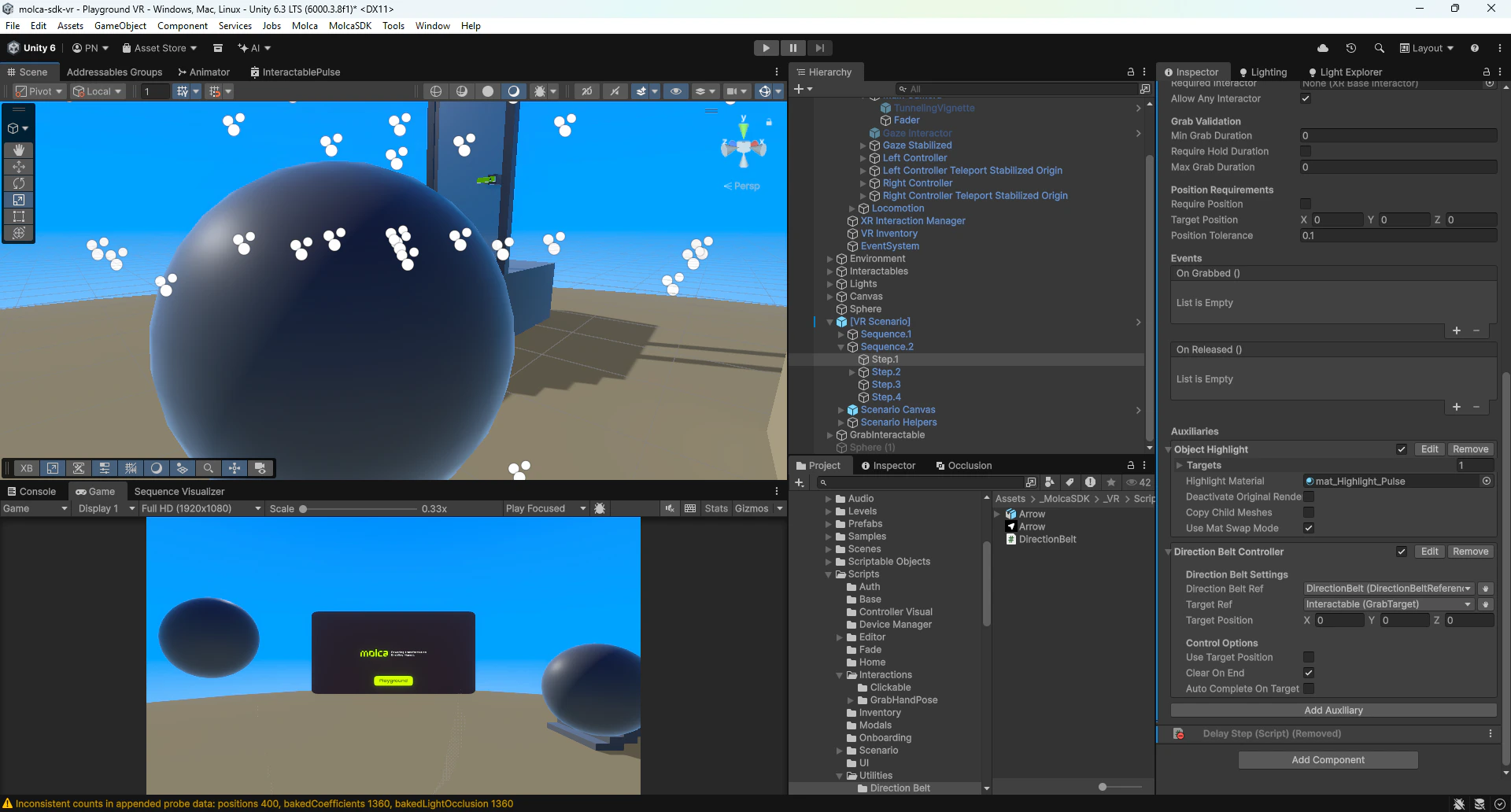
## Visual Examples
### Scene Setup
***
## Related
* [GrabStep](/vr/steps/grab-step) — Completion rules, hold duration, and position validation
* [StepObjectHighlightAuxiliary](/vr/steps/vr-step-auxiliaries) — Material overlay highlight feedback (copy & swap modes)
* [InteractablePulse Shader](/vr/shaders/interactable-pulse-shader) — Rim light with pulse animation
* [MaterialPropertyBlockPool](/core/utilities/material-property-block-pool) — Object pool for material properties (GC optimization)
* [StepDirectionBeltController](/vr/steps/vr-step-auxiliaries) — Direction belt animation and targeting
* [VR step auxiliaries](/vr/steps/vr-step-auxiliaries) — Overview of all StepAuxiliary types (haptics, scoring, mode events)
* [Step scoring auxiliary](/vr/scoring/step-scoring-auxiliary) — Grab timing and accuracy scoring
* [VR player manager](/vr/vr-player-manager) — Disable locomotion during precision grabs
## Visual Examples
### Scene Setup
 ### Interaction Flow Animation