> ## Documentation Index
> Fetch the complete documentation index at: https://docs-unity.molca.id/llms.txt
> Use this file to discover all available pages before exploring further.
# Sequence Visualizer
> Unity Editor window to inspect sequences, change step types, and open the CSV Step Importer.
**Menu:** **Molca → Utilities → Sequence Visualizer**\
**Script:** `Packages/com.molca.core/Editor/Sequence/SequenceVisualizerWindow.cs`
Editor-only tooling for [SequenceController](/core/sequence-controller) and [Step](/core/step) hierarchies. It does not ship in player builds.
## Open the window
1. In the Unity menu bar, choose **Molca → Utilities → Sequence Visualizer**.
2. Assign a **`SequenceController`** in the toolbar **Controller** object field, or select a step under a controller in the Hierarchy (the window can pick up the controller from selection).
Minimum window size is enforced in code (about 600×400).
## Layout
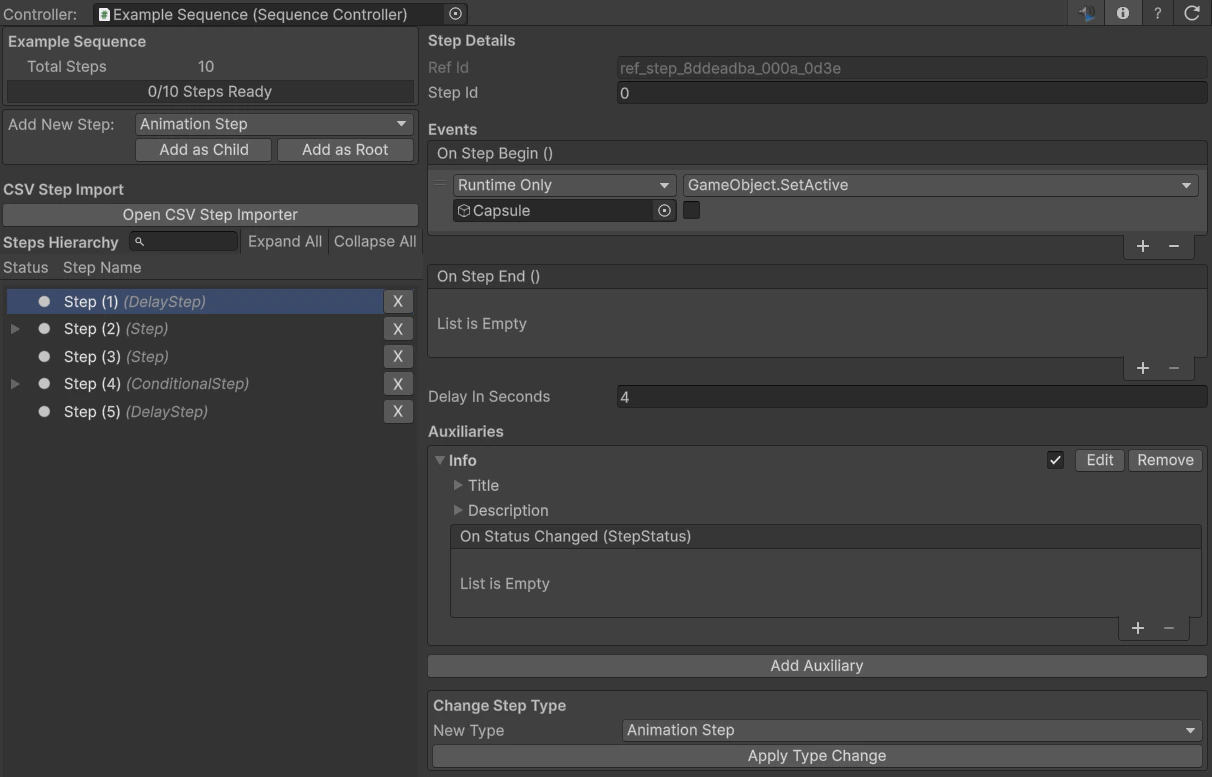
| Area | Purpose |
| ---------------- | ----------------------------------------------------------------------------------------------------- |
| **Toolbar** | Controller reference, auto-refresh toggle (play mode), details panel toggle, refresh, **?** shortcuts |
| **Left column** | Controller summary, add-step controls (**Edit Mode**), **CSV Step Import** (**Edit Mode**), step tree |
| **Right column** | **Step Details** — embedded Inspector for selected step(s); **Change Step Type** when applicable |
Toggle the **details** icon in the toolbar to show or hide the right column.
## Step tree
* Steps are shown in hierarchy order; expand/collapse nodes.
* **Play mode:** step names show **runtime status** (e.g. Active / Completed) and colors; **Filters** (Show Completed / Show Inactive) apply.
* **Edit mode:** hierarchy is rebuilt from transforms via **`StepHierarchyBuilder`** when the scene changes.
* **Selection:** syncs with the Unity Hierarchy. **Ctrl/Cmd+click** multi-select, **Shift+click** range select (anchor = last clicked).
* **Shortcuts** (see **?** in toolbar): **Delete** removes selected steps (edit mode), **F** frames the primary step, **Ctrl/Cmd+F** focuses search.
## Change step type
Available in the **Step Details** panel when:
* **Not** in Play Mode, and
* Exactly **one** step is selected.
Controls:
1. **New Type** — popup listing all **concrete** types that inherit **`Step`** (discovered across loaded assemblies via `FindAllStepTypes`).
2. **Apply Type Change** — enabled only when the chosen type differs from the current component.
**Data preservation:** The dialog states that only **Step ID** (`RefId`) and **Auxiliaries** are kept. Other serialized fields on the old step type are **lost** when the component is swapped. Confirm in the dialog before applying.
Under the hood, the tool adds the new `Step` component, copies `RefId` and auxiliary list (via reflection), rebinds auxiliary internal references, then destroys the old step component — all **Undo**-able.
## CSV Step Importer button
In **Edit Mode**, the left column includes a **CSV Step Import** section with:
**Open CSV Step Importer**
This calls `CsvStepImporterWindow.ShowWindow(_selectedController)`, so the importer opens with the **same SequenceController** already targeted in the Visualizer (you can change it in the importer if needed).
The CSV section is **hidden in Play Mode**; use it while editing the scene.
The importer is also reachable directly: **Molca → Utilities → CSV Step Importer** (`CsvStepImporterWindow.cs`).
## Related
* [CSV Step Importer](/core/csv-step-importer) — columns, row range, import behavior, extensions
* [SequenceController](/core/sequence-controller) · [Step](/core/step) · [Core step types](/core/core-step-types)
## Unity Editor